


Backing up your computer to Google Drive
If you need to backup your files to Google Drive you can do this by drag-and-drop into the Chrome browser or using Google Drive for Desktop automatic syncing.
Drag and Drop Backup
Backup Individual Files
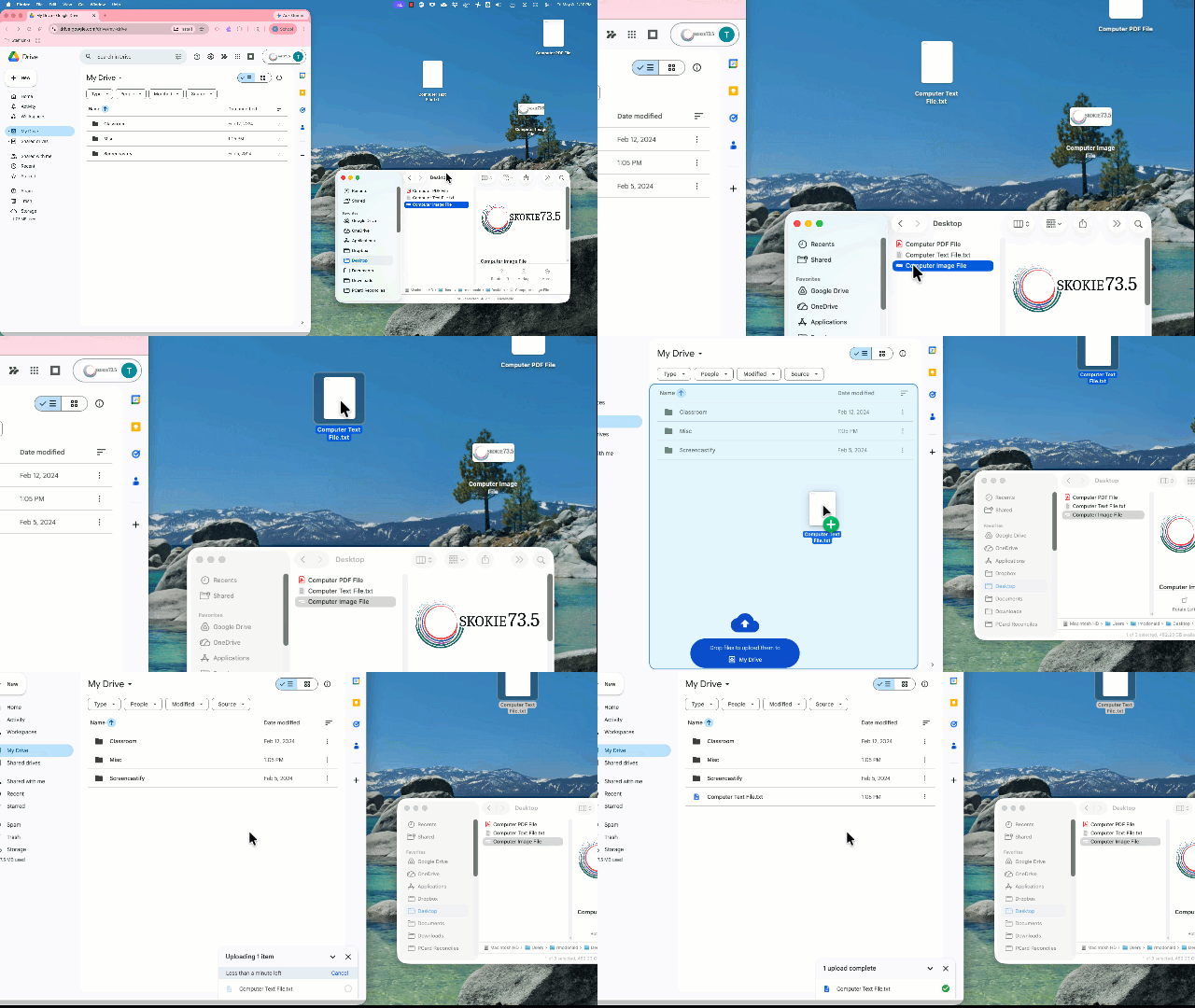
With the Google Drive webpage open on your Chrome browser, backing up a single file is as easy as dragging it onto the browser window as displayed in the image below.
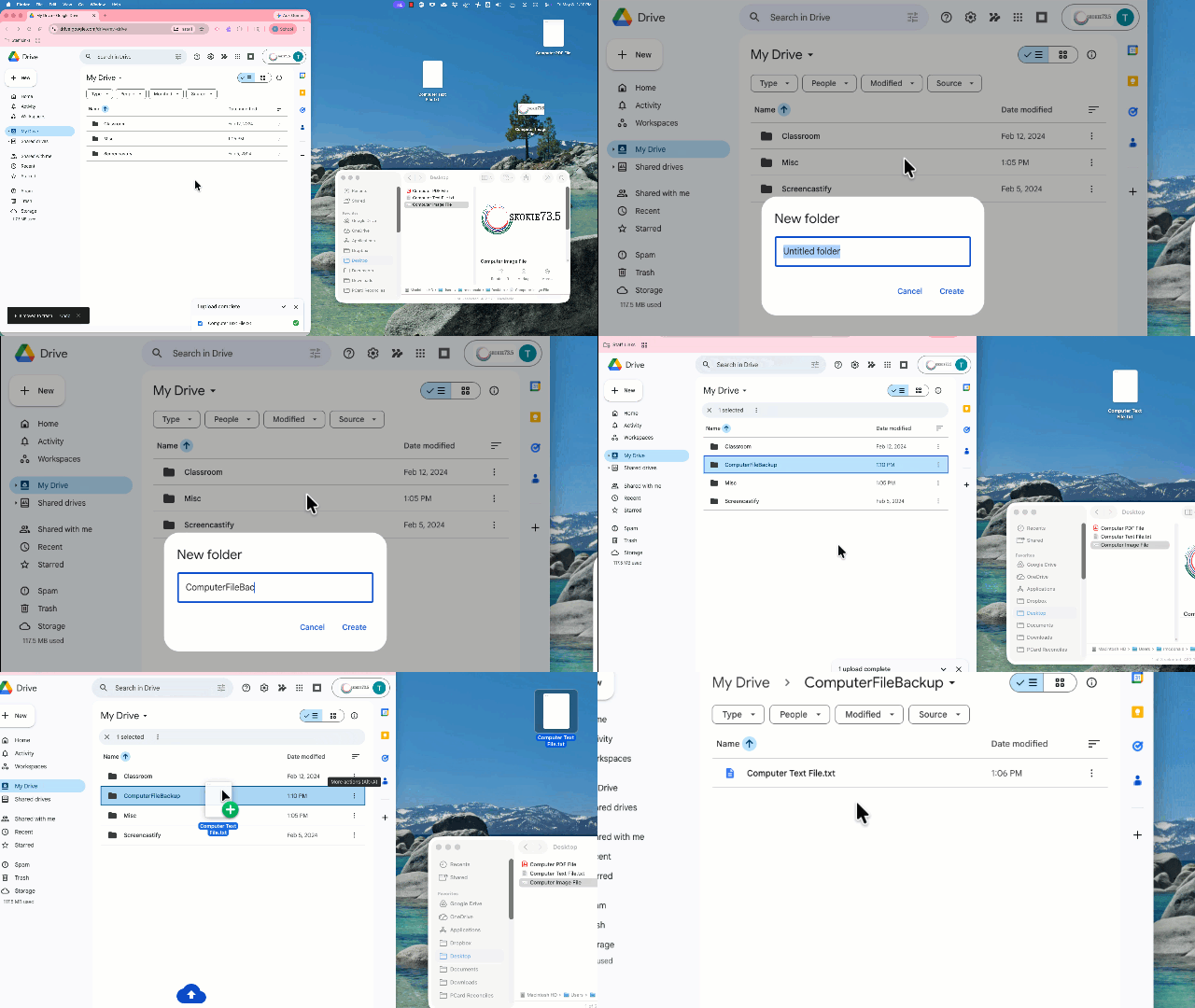
You can also consider creating a new folder in your drive for backup and place the file in there (again, as pictured below)
Backup Multiple Files
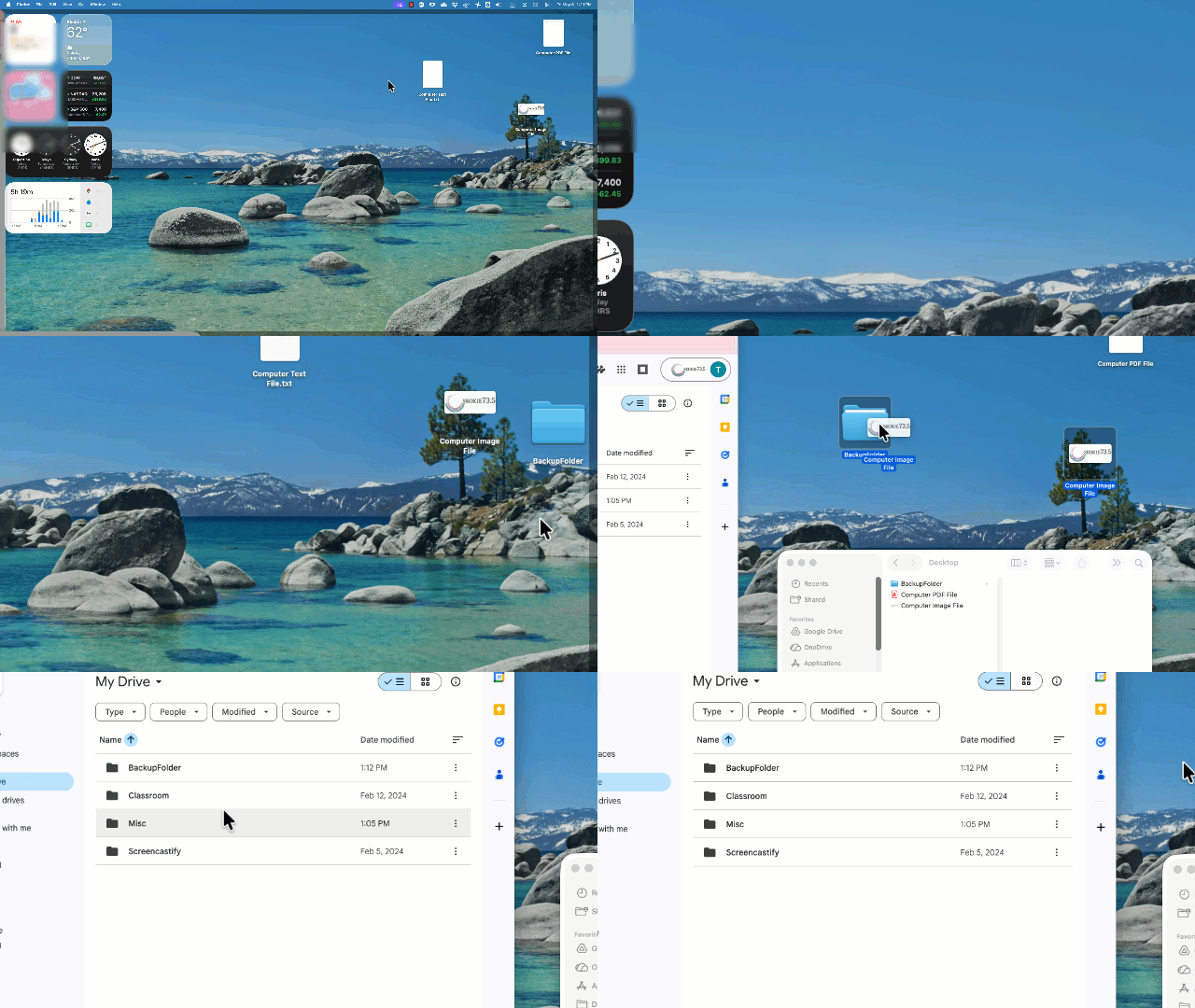
To make the process faster, you can also create a folder on your laptop, place all files inside and then drag the folder into Google Drive on the Chrome browser. You can also drag existing folders like your Desktop or Downloads folders into Google Drive on Chrome browser.
Google Drive for Desktop Backup
Using the Google Drive for Desktop is an easy way to keep your files in sync and for backup.
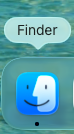
We install the app on all staff devices but you may need to login to get the drive to appear in the Finder app (pictured below).
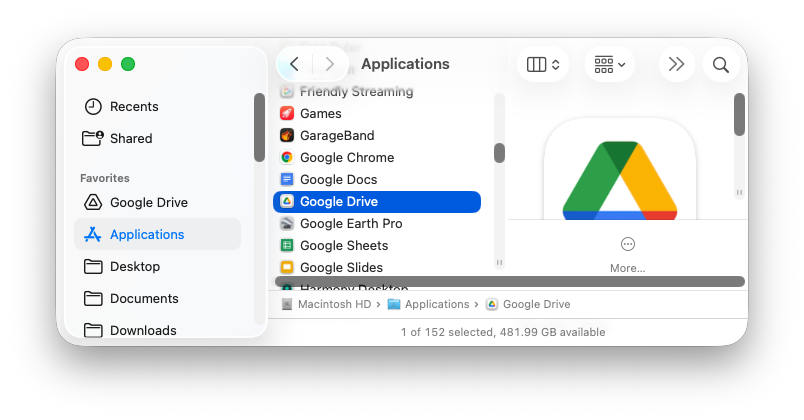
Once you have Finder open, navigate to Applications > Google Drive (pictured below) and open the app. It will guide you through the login process where you can enter your District Google account.
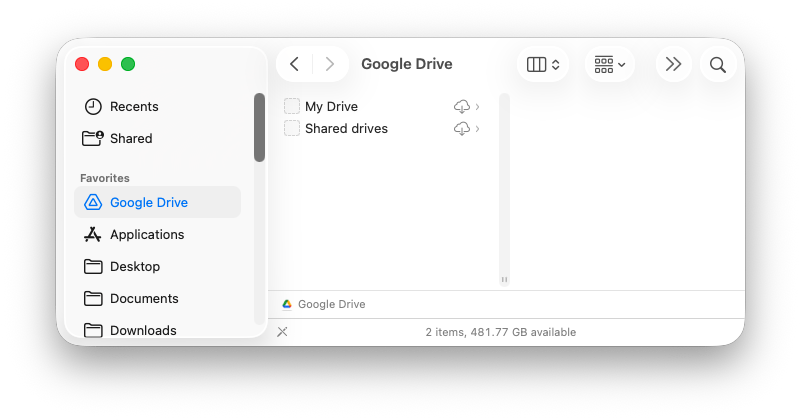
Once logged in you should see a folder for Google Drive in the left side of the Finder app (pictured below) that will allow you to drag files into your drive or shared drives and the sync will occur in the background.
As always, if you have issues feel free to submit a ticket on this portal for the Technology Department.

